

NextGen | Dynamic Forms Help
FAQs & Troubleshooting Guide
Most graduate school forms are processed electronically via NextGen (Dynamic Forms). Select your situation below for step-by-step guidance.
- Access your NextGen Dashboard via the NextGen Personal Dashboard Portal (opens in new window).
- Click the navy blue button labeled "NextGen Personal Dashboard".
- If you aren't already signed in to your UA account, you will be prompted to log in.
- Once signed in, you will be directed to your dashboard where you can manage pending and completed forms.
Follow these steps to access, complete, and fully submit a NextGen form assigned to you:
Step 1: Access the Form from Your Dashboard
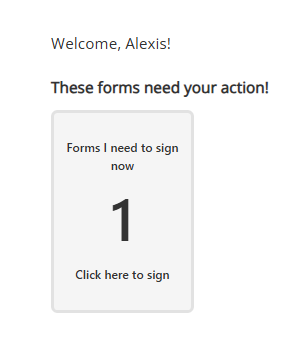
Click on the rectangle to see forms awaiting your signature
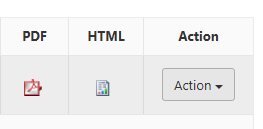
Click on the "Action" button to see action options
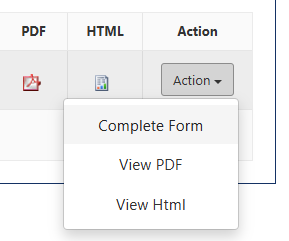
Click on the "Complete Form" button in the dropdown.
Step 2: Sign and Complete Required Fields
- Fill out any required fields or comments assigned to your section of the form.
- For multi-page forms, scroll down and click the "Next" button at the bottom of the page to navigate to the page where your signature section is located.
- Locate the yellow highlighted signature area requiring your signature and click on it.
- Type your first and last name exactly as prompted, then click "Sign Electronically".
Step 3: Navigate to the Final Page & Submit
- Scroll all the way down to the bottom of the page (or click "Next" at the bottom to navigate through multi-page forms) until you reach the final page.
- Click the "Submit Form" button.
If clicking the button does not submit the form, it means you still have required fields or signatures to complete. Scroll back through the form to locate any highlighted or missing items, complete them, and click "Submit Form" again.
✅ How do I know my form was successfully submitted?
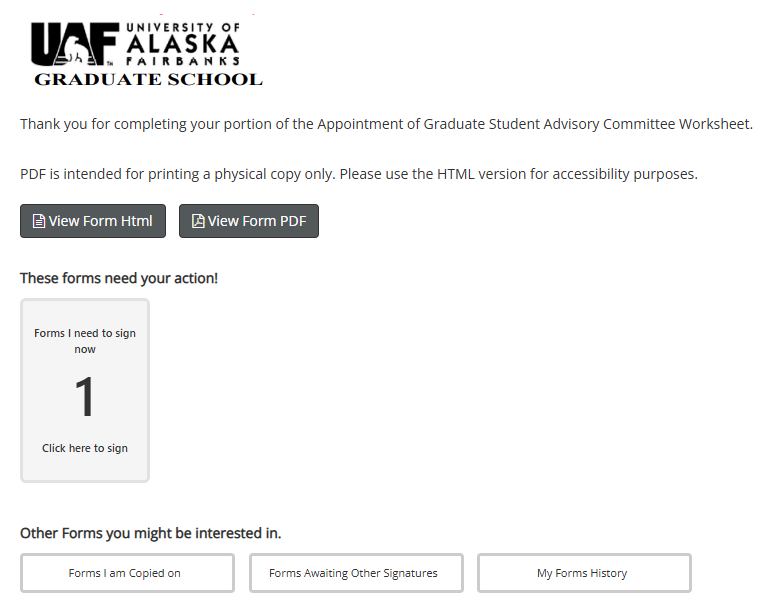
Your form is fully submitted only when you are redirected to a confirmation page stating "Thank you for completing your portion."
Toolbar Buttons Explained
- Save Progress: Saves your current entries so you can leave and finish later.
- Return for Revision: Sends the form back to a previous signer if corrections are needed (you will select the recipient).
- Submit Form / Next: Advances through pages or finalizes your submission once all required fields are complete.
If you open a form and see an alert banner at the top of the page stating that the form version is no longer up to date:

Follow these steps based on your situation:
- If you are starting a new form (or haven't filled it out yet): Click the link in the alert banner at the top of the form to reload the newest, correct version before completing and submitting.
- If the form has already been partially signed: Please continue filling out and signing the form as normal. Do not start over on a new version unless specifically requested by the Graduate School.
In your NextGen Dashboard, check under the following categories:
- Forms Awaiting Other Signatures: Shows forms you've signed that are pending others.
- Forms I am Copied on: Shows completed or active forms where you are listed as a reader.
- My Forms History: Archives all forms you have submitted or participated in.
Committee members or outside signers without an official UA login can access NextGen forms using these steps:
- Create a NextGen external account using your preferred email address.
- Provide that exact email address to the student submitting the form.
- Use the single sign-on / external login portal below to access forms:
If you encounter an error message, broken link, or signing failure, please contact the Graduate School directly at uaf-grad-school@alaska.edu.
Please include the following information so we can resolve the issue quickly:
- Student ID (UA ID) associated with the form
- Name of the form (e.g., Advancement to Candidacy)
- Brief description of the issue
- Screenshots showing the full browser window and error message
We welcome feedback to improve our workflow and forms!
Submit NextGen Form Feedback (opens in new window) »
Note: Please do not use the feedback form for immediate assistance with a stuck or broken form. Contact uaf-grad-school@alaska.edu directly for immediate support.