Connect to UAlaska (Windows 7)

How to connect to UAlaska on Windows 7

This guide will help you in configuring your Windows 7 computer to connect to the UAlaska Wi-Fi. 

Step 1: Select the Wi-Fi icon in your toolbar and then select Connect to the UAlaska Wi-Fi network.
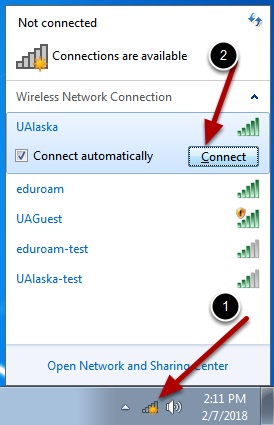
Wifi menu on windows 7 with a list of networks to choose from. A red arrow points to the wifi icon on the bottom right of the taskbar. In the list of networks UAlaska is selected and a second red arrow points to a connect button on the right.

Step 2: Enter your UA username and password.

Windows security window prompting for network credentials, and boxes to enter in UA username and password. A blue ok button and cancel button are on the bottom right of the window.

Step 3: Click Connect.

Windows security alert window prompting to confirm connecting to the network. A red arrow is pointing to the connect button on the bottom right of the window.

You are now connected to the UAlaska Wi-Fi network. Please select the network type that is right for you.

Set network location window for the connected network. The options are home network, work network, and public network. A cancel button in on the bottom right of the window.